 ™
Your note, straight
into your PIMS.
For practice management systems installed on Windows or run through Remote Desktop or Citrix. Today’s notes sit in a panel beside your PIMS: click a field, press Ctrl+Shift+E, and the next section of the note goes in. No retyping, no reformatting.
Windows 10 and 11
No admin rights to install
Remote Desktop and Citrix
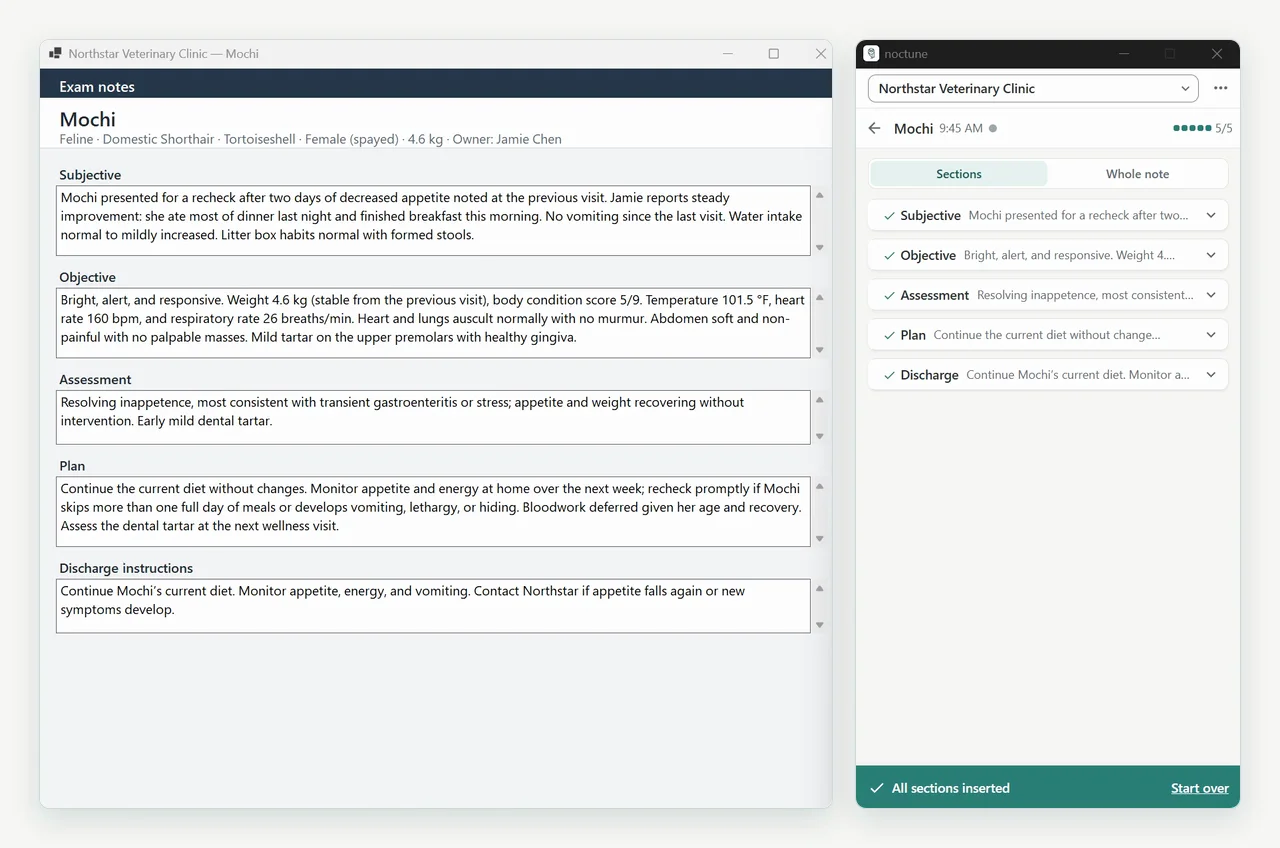
Click a field. Press Ctrl+Shift+E.
Record the visit the way you do now. When the note is ready, it’s waiting in the panel, one section at a time.
Open today’s note
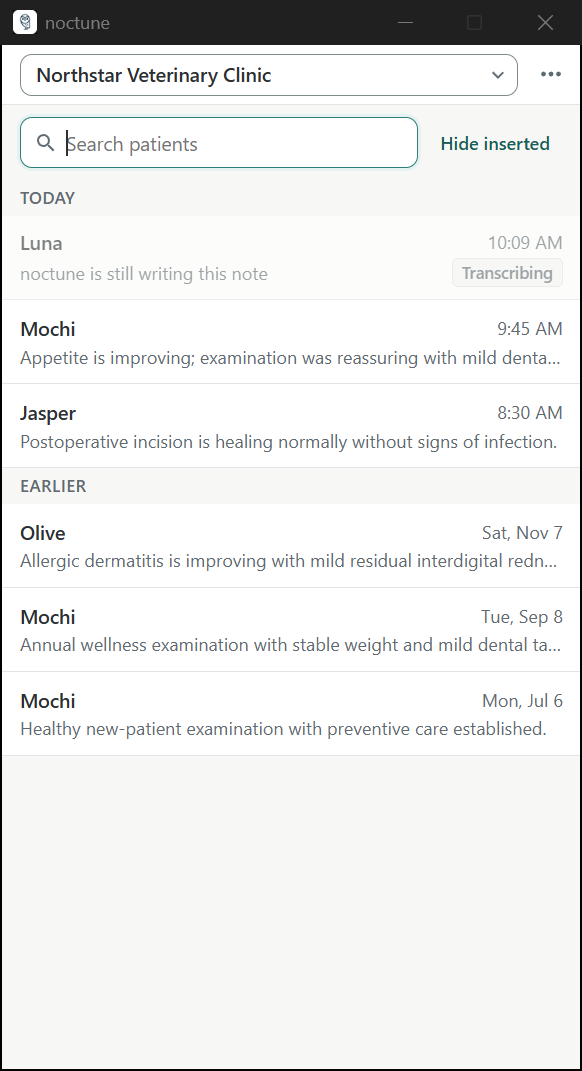
The noctune panel sits beside your PIMS and lists today’s notes for your practice. Search by patient, then open the visit you’re charting.
Click a field in the patient record
Put the cursor where the section belongs, like the Subjective field in your PIMS.
Press Ctrl+Shift+E
The next section goes in at the cursor and a badge confirms where it landed. Ctrl+Z undoes it. Press again for the next section.
Windows
Want a different key? Choose Change shortcut from the ⋯ menu in the panel, or right-click the noctune icon in the notification area and select Settings…
It fills the field. Nothing else.
The record stays yours. noctune puts the text where your cursor is and leaves every other decision to you.
Never saves or submits
noctune never saves, submits, clicks, or presses Enter in your PIMS. It only pastes the section. You review the record and save it yourself.
Copies when it can’t insert
No field selected, a read-only field, or a PIMS running as administrator? noctune copies the section instead and tells you, so Ctrl+V finishes the job.
Keeps note text off the PC
Notes live in the app’s memory, never on disk. Sections it copies stay out of Windows clipboard history and cloud sync, and are cleared after two minutes.
Made for PIMS that run on Windows
Works with Windows practice management systems such as IDEXX Cornerstone, Covetrus AVImark, Covetrus ImproMed, DVMAX, ClienTrax, and IntraVet: anywhere you can click into a text field, including over Remote Desktop or Citrix.
noctune for Windows
Windows 10 or Windows 11
Installs for your Windows account, no admin rights needed
PIMS installed on the PC: inserts into fields that accept typing
PIMS run through Remote Desktop or Citrix, with clipboard sharing turned on
Signs in with your noctune account
In a Remote Desktop or Citrix window, noctune pastes the section but can’t see the field, so glance at the record to confirm it landed. The setup guide covers the remote client settings.
Setup and troubleshooting guidePIMS in your browser?
The noctune Chrome extension brings the same panel and shortcut to practice management systems that run in the browser, such as IDEXX ezyVet, IDEXX Neo, Covetrus Pulse, Shepherd, Digitail, Provet Cloud, Vetspire, Hippo Manager, and Rhapsody. No desktop install needed.

IDEXX Cornerstone, AVImark, ImproMed, DVMAX, ClienTrax, IntraVet, ezyVet, IDEXX Neo, Covetrus Pulse, Shepherd, Digitail, Provet Cloud, Vetspire, Hippo Manager, and Rhapsody are trademarks of their respective owners. noctune is not affiliated with or endorsed by them.
Try noctune for Windows at your practice
Download the app, sign in with your noctune account, and insert your next note.
Download for WindowsAll downloads
Version 1.0.1 · Released November 11, 2026 · Windows 10 and 11
Installer for your Windows account
2.7 MB
No admin rights needed. Keeps itself up to date.
noctune_1.0.1_x64-setup.exe3d5d635e65df686758f67200a66a726bab7ad1b3ac1df3c1e68291dcd3da3039MSI for IT
3.9 MB
Installs for every user on the PC, for deployment through Intune or Group Policy. MSI installs don’t update themselves: deploy each new release.
noctune_1.0.1_x64_en-US.msifdb8a6986d5fb5e462d7497d75352531dbcbdafb781af7de5d7c56a90902d85eCheck a download in PowerShell and compare the result with the SHA-256 above, or with SHA256SUMS.txt:
Get-FileHash .\noctune_1.0.1_x64-setup.exe -Algorithm SHA256Signed by Jonathan Ng